I built an An all-in-one set of editing upgrades for the Camunda Modeler (5.x +): resizable BPMN elements plus a handful of related conveniences.
Out of the box the Camunda Modeler only lets you resize pools and expanded sub-processes. This plugin extends resizing to most other shapes and throws in keyboard resizing, fit-to-label, an aspect-ratio lock, an animated flow line, control over the collapsed sub-process marker, horizontal/vertical flipping of a selection, and an animated-SVG export.
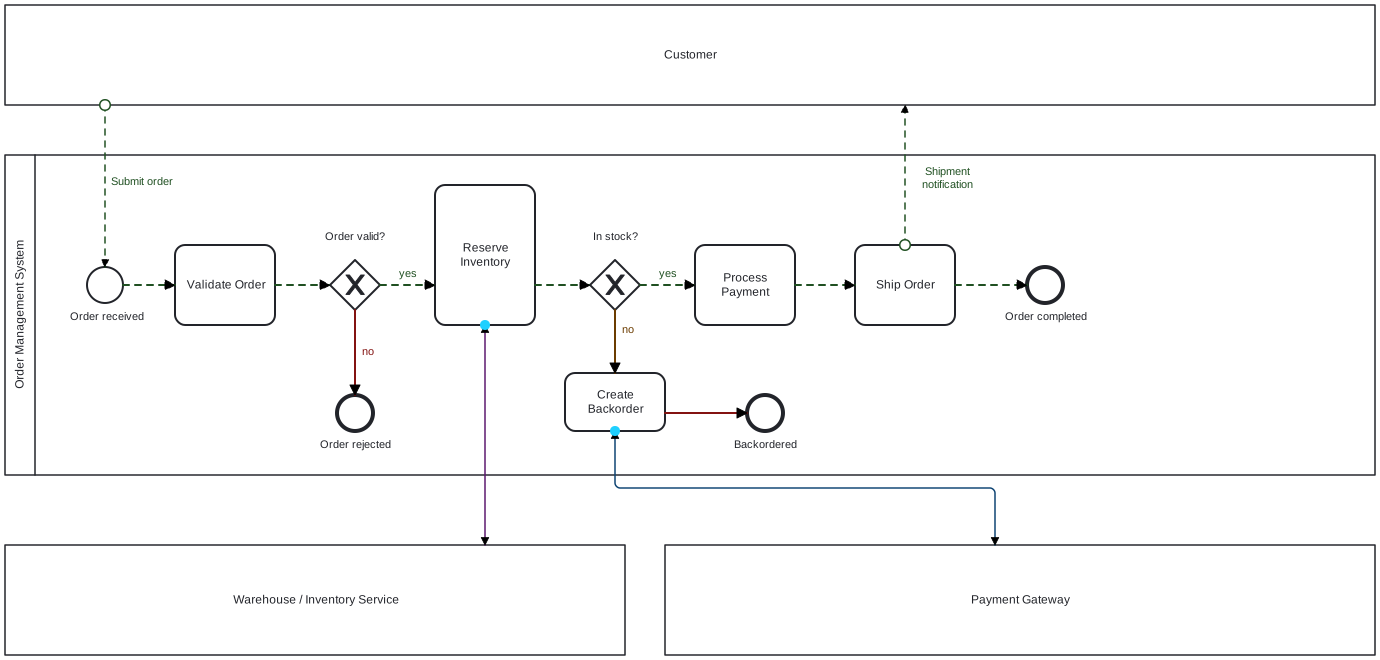
What it does
Resizing
-
Tasks (every task type), sub-processes, transactions, ad-hoc sub-processes, call activities, data objects, data stores, groups, text annotations and participants can be resized by dragging their handles.
-
Events and gateways are deliberately left at their fixed BPMN sizes so diagrams stay portable across tools.
-
Each element type has a minimum size, so a shape can’t be collapsed to nothing by accident.
Editing helpers
-
Fit to label: select a shape and use the “Fit to label” button in the context pad to grow it until the whole label fits.
-
Reset size: the “Reset to default size” button in the context pad puts a shape back to its standard dimensions.
-
Keyboard resize: with a shape selected, Ctrl+Shift+Arrow grows it; hold Alt as well to shrink.
-
Aspect-ratio lock: hold Shift while dragging a resize handle to keep the original width-to-height ratio.
Connections
-
Flows are drawn solid with a filled arrowhead by default (message flows too, which BPMN normally dashes with a hollow arrow); the dashed look is reserved for the flow animation below.
-
Flow animation: select a sequence or message flow and use the “Toggle flow animation” button in its context pad to run an animated dashed line along it. Each connection animates independently. It is a viewing aid only. You can also toggle it on the selected flow(s) with Ctrl+Shift+L.
-
Two-way line: select a flow and use the “Toggle two-way line” button in its context pad to draw the line solid with a filled arrowhead on both ends. When a two-way line is also animated, a circle slides back and forth along it (the one-way marching-dash animation is replaced by the moving circle). Visual only.
Collapsed sub-process marker
- Select a collapsed sub-process and use its context-pad buttons to hide or show the “+” marker and to cycle its position between bottom-center and the four corners. Each sub-process keeps its own setting. The hide/position choice now persists with the file and is restored when you reopen the diagram.
Flip a selection
- Select two or more shapes; the align button appears (the same one used for aligning elements). Open it and use the “Flip” group to mirror the selection horizontally or vertically. Connections between the shapes re-route automatically.
Background box
- Use the “BG” tool in the left palette to drop a background box, then drag its handles to size it anywhere with no minimum. It draws as a clean filled rectangle and always stays behind everything else, so you can shade or group regions of a diagram. Recolour the fill and border with Camunda Modeler’s colour picker. It is a real, saved element (a bpmn:Group), undoable with Ctrl+Z.
Export (SVG / GIF)
-
The “SVG” palette button exports the diagram as a self-contained animated SVG, so it keeps playing when opened in a web browser or an image preview (the motion uses CSS, not SMIL, so it runs wherever CSS animations do). The cover image at the top of this README is one such export.
-
The “GIF” palette button captures the animation and saves a looping GIF (~4.4s, 12 fps, scaled to <=1000px). Handy where an animated SVG won’t play like Reddit, chat apps, slide decks.
Resizing and flipping go through the modeler’s command stack, so they can be undone with Ctrl+Z (a flip currently undoes one shape at a time). The flow animation, two-way state, collapsed-marker setting and background boxes are saved with the diagram; the SVG/GIF exports are one-off downloads and never change it.
You can get the plugin from here. https://github.com/JRBusiness/aio-upgrade-camunda-modeler-plugin
Any feedback and contributor welcome, if you have any question, feel free to open issue and I will try my best to answer them.
